How to Fix PR_END_OF_FILE_ERROR in Firefox: A Complete Guide
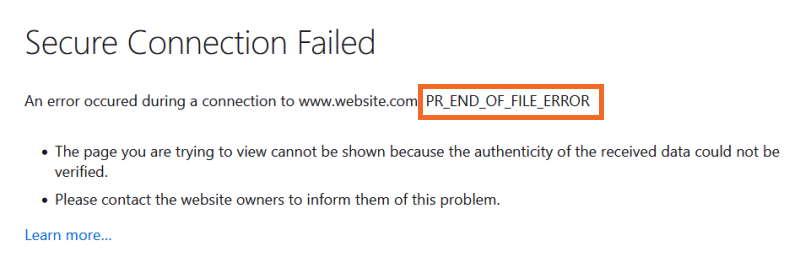
Encountering a "Secure Connection Failed" message while browsing is never ideal, especially when it’s accompanied by the cryptic `PR_END_OF_FILE_ERROR`. This specific error code, primarily found in Mozilla Firefox, can be a major roadblock, preventing you from accessing numerous websites. It’s a clear indication that your browser is struggling to establish a secure, encrypted connection with the site you’re trying to visit. While potentially frustrating, understanding the root causes and applying the right solutions can swiftly get you back to seamless browsing. This comprehensive guide will delve into what triggers the `Pr End Of File Error` and provide actionable steps to resolve it.
Understanding PR_END_OF_FILE_ERROR: The Secure Connection Failure
When you navigate to a website, particularly one protected by HTTPS, your browser initiates a secure handshake process using protocols like Transport Layer Security (TLS) or its predecessor, Secure Sockets Layer (SSL). A crucial part of this handshake involves what are known as
cipher suites. Think of cipher suites as a set of cryptographic instructions and algorithms that dictate how the encryption, authentication, and key exchange will occur between your browser and the website's server. They ensure that your connection is private and secure.
The `PR_END_OF_FILE_ERROR` specifically arises when Firefox attempts to access its list of available cipher suites but fails to find the appropriate or supported instructions to establish a secure connection with the target website. The exact error message typically reads: "Secure Connection Failed - An error occurred during a connection to [website address]. PR_END_OF_FILE_ERROR". This usually implies a mismatch or an interruption in the secure communication process, leaving your browser unable to complete the connection. While not among the most common Firefox errors, its widespread impact – often affecting every site you try to visit – demands immediate attention.
Common Causes Behind the Pr End Of File Error
Pinpointing the exact cause of the `Pr End Of File Error` is the first step towards resolution. This error isn't typically random; it stems from specific interferences or misconfigurations within your system or browser. Here are the primary culprits:
* **VPN or Proxy Server Interferences:** Virtual Private Networks (VPNs) and proxy servers route your internet traffic through external servers, often for privacy or to bypass geo-restrictions. While beneficial, a misconfigured VPN or proxy can disrupt Firefox's ability to establish a secure connection. This can happen if the server is unable to correctly track your location, or if the VPN/proxy itself blocks Firefox from initiating or completing the secure handshake. Some overzealous VPNs might intercept SSL/TLS traffic in a way that Firefox doesn't approve, leading to this specific error.
* **Third-Party Internet Security Solutions:** Antivirus programs, firewalls, and anti-malware tools are designed to protect your system from threats. However, some overly aggressive security suites can interfere with legitimate network connections. They might, for instance, employ "SSL inspection" or "HTTPS scanning," where they intercept and re-encrypt secure connections. If this process goes awry, or if the security software misclassifies a safe website as dangerous, it can prevent Firefox from establishing its own secure link, thus triggering the `Pr End Of File Error`.
* **Corrupted Firefox Profile:** Your Firefox profile stores all your browsing data, including history, bookmarks, passwords, extensions, and custom settings. Over time, or due to software conflicts, this profile can become corrupted. A damaged profile might contain faulty configuration files or broken settings that prevent Firefox from correctly handling secure connections. Many users have reported successfully resolving the `Pr End Of File Error` simply by creating a fresh, new Firefox profile.
* **Incorrect Cipher or Modified SSL Settings:** Firefox relies on specific SSL/TLS settings to secure connections. If these settings are inadvertently modified on your system or within the browser itself (often through advanced configuration like `about:config`), it can lead to a scenario where your system or Firefox attempts to enforce a cipher suite that is either deprecated, not supported by the website, or not compatible with Firefox's current security policies. This mismatch fundamentally breaks the secure connection process.
For a deeper dive into these underlying issues and their implications, you might find
PR_END_OF_FILE_ERROR: Understanding Firefox's Secure Connection Issue to be a valuable read.
Step-by-Step Solutions to Fix PR_END_OF_FILE_ERROR
Resolving the `Pr End Of File Error` requires a systematic approach. Below is an assortment of proven, effective solutions. It's advisable to try them in order, starting with the simplest, and testing after each step to see if the issue is resolved.
1. Basic Troubleshooting & Browser Update
Before diving into complex fixes, perform these quick checks:
* **Restart Firefox and Your Computer:** Sometimes, temporary glitches can cause connection issues. A simple restart can clear these up.
* **Check Your Internet Connection:** Ensure your internet connection is stable and functioning correctly.
* **Try Another Browser:** If other browsers (Chrome, Edge, Safari) can access the sites without issue, it confirms the problem is specific to Firefox.
* **Update Firefox:** An outdated browser might lack support for modern cipher suites or contain bugs that have since been patched.
1. Open Firefox.
2. Click the three-horizontal-line menu icon (hamburger menu) in the top-right corner.
3. Go to `Help` > `About Firefox`.
4. Firefox will automatically check for and apply updates. Restart the browser if prompted.
2. Investigate and Disable VPNs or Proxy Servers
If you use a VPN or proxy, these are common culprits.
* **Temporarily Disable Your VPN/Proxy:** Turn off your VPN software or proxy service and try accessing the website again.
* **Check Firefox's Proxy Settings:**
1. Open Firefox's `Settings`.
2. Scroll down to `Network Settings` and click `Settings...`.
3. Ensure "No proxy" is selected, or if you use a system proxy, confirm "Use system proxy settings" is chosen. Avoid "Manual proxy configuration" unless you know exactly what you're doing.
4. Save changes and restart Firefox.
For more detailed guidance on handling VPN and proxy-related issues, refer to
Resolve PR_END_OF_FILE_ERROR: VPN, Antivirus & Profile Fixes.
3. Manage Third-Party Internet Security Solutions
Your antivirus or firewall could be intercepting connections.
* **Temporarily Disable Security Software:** As a test, temporarily disable your antivirus or firewall. *Remember to re-enable it immediately after testing.* If the error disappears, you've found the cause.
* **Check Security Software Settings:** Look for features like "SSL/HTTPS scanning," "web shield," or "web protection." Try disabling these specific components within your security software.
* **Add Firefox as an Exception:** Configure your antivirus/firewall to explicitly trust Firefox and its connections. Consult your security software's documentation for instructions.
4. Create a New Firefox Profile
A corrupted user profile is a frequent cause of persistent Firefox issues.
* **Access the Profile Manager:**
1. Type `about:profiles` into the Firefox address bar and press Enter.
2. Click the "Create a New Profile" button.
3. Follow the prompts, giving your new profile a descriptive name.
4. Once created, click "Launch profile in new browser" or "Set as default profile" for the new profile.
5. Test if the error persists with the new profile. If it's resolved, you can transfer your important data (bookmarks, passwords) from your old profile to the new one later.
5. Reset Firefox SSL/TLS Settings
Incorrect advanced settings can lead to cipher suite failures. Proceed with caution when using `about:config`.
* **Access Advanced Configuration:**
1. Type `about:config` into the Firefox address bar and press Enter.
2. Accept the warning "Proceed with Caution".
3. In the search bar, type `security.tls.version`.
4. You'll see settings like `security.tls.version.min` and `security.tls.version.max`. The default values are typically `3` for min (TLS 1.2) and `4` for max (TLS 1.3). If these have been modified, right-click them and select "Reset" to revert to default.
5. You can also search for `security.ssl` and `tls.version` to look for other potentially modified values. If you're unsure, it's safer to only reset the `.min` and `.max` TLS version settings or proceed to the next step.
6. Restart Firefox.
6. Clear Firefox Cache and Site Data
Corrupted cache files can sometimes interfere with secure connections.
* **Clear Browsing Data:**
1. Open Firefox's `Settings`.
2. Go to the `Privacy & Security` panel.
3. Under `Cookies and Site Data`, click `Clear Data...`.
4. Check both "Cookies and Site Data" and "Cached Web Content".
5. Click `Clear`.
6. Under `History`, click `Clear History...`.
7. Select "Everything" for the time range, and at least check "Cache" and "Active Logins" (optional: other items as you prefer).
8. Click `OK`.
9. Restart Firefox.
Proactive Measures to Prevent Pr End Of File Error
While the `Pr End Of File Error` can be daunting, there are steps you can take to minimize its recurrence:
* **Keep Firefox Up-to-Date:** Regularly updating Firefox ensures you have the latest security patches, cipher suite support, and bug fixes.
* **Review Security Software Settings:** Periodically check your antivirus and firewall settings. Ensure they are not overly aggressive in intercepting secure connections and consider adding Firefox to their whitelist.
* **Use Reputable VPNs/Proxies:** If you rely on these services, opt for well-known providers and ensure their software is also up-to-date.
* **Exercise Caution with `about:config`:** Only modify advanced Firefox settings if you fully understand their implications. Unnecessary tweaks can inadvertently break functionality.
* **Maintain a Clean Browser:** Regularly clear your browser's cache and cookies to prevent accumulated corrupted data from causing issues.
Conclusion
The `PR_END_OF_FILE_ERROR` in Firefox, signifying a "Secure Connection Failed" issue, is a problem that can significantly disrupt your browsing experience. However, by understanding its connection to cipher suites and the common interferences from VPNs, security software, corrupted profiles, or incorrect SSL settings, you are well-equipped to tackle it. By patiently following the step-by-step solutions outlined in this guide – from simple restarts and updates to managing security software and resetting advanced configurations – you can effectively diagnose and resolve the `Pr End Of File Error`, restoring your ability to browse securely and without interruption.